Drawing exchange with NOLD Ingenieure – guide for external CAD technicians
From the first drawing through notifications and review comments to the approved-for-construction revision
As of: 18.11.2026 · Download as PDF
Overview: your way through the portal
You have been invited to the drawing portal of a project as a CAD technician (access type “CAD technician”). Here you upload your drawings, see what NOLD and the checking engineer say about them, and upload the revised versions again.
Every drawing goes through the same chain. The columns of the drawing list show where it currently stands: Drawn → Internal review (NOLD) → Pre-corrected (incorporated by you) → to checking engineer → External review (the checking engineer’s reply) → Approved (for construction) → issued (to the site).
This guide follows exactly that path. Each section shows what you see and what you do.
Good to know
- The interface is available in German and English; switch with “DE” / “EN” at the top right.
- The process notifications (section 6) and the invitation email are sent by NOLD in German; the interface itself follows your language choice.
1. Accept the invitation and sign in
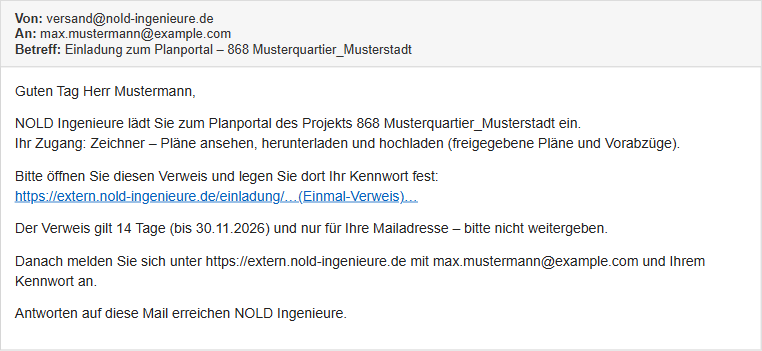
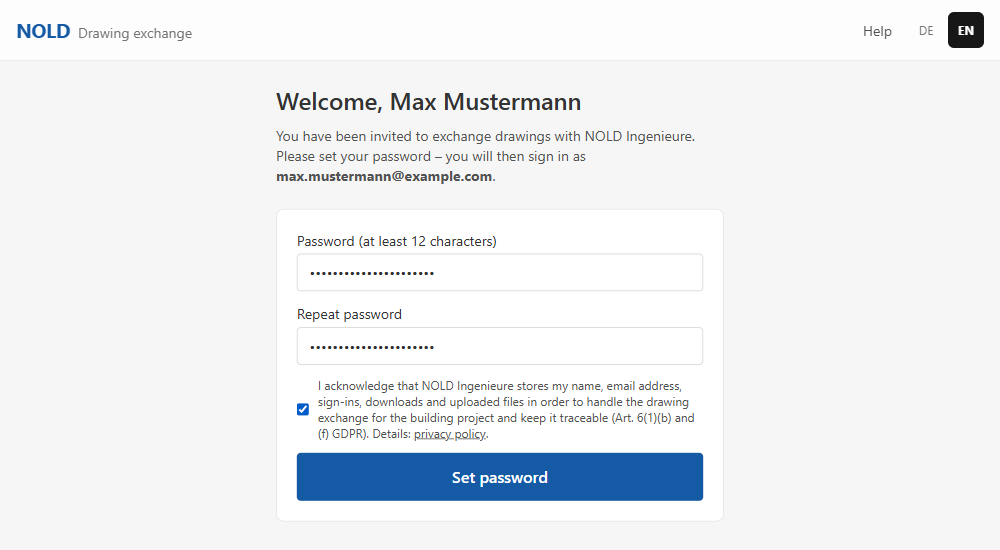
NOLD creates your access; you do not register yourself. With the link in the invitation email you set your password.
How it works
- Open the email “Einladung zum Planportal – <project>” (sender versand@nold-ingenieure.de). It states your access and what it allows. The link is valid for 14 days and only for your email address – please do not pass it on.
- Click the link. Set your password (at least 12 characters, entered twice) and confirm the data-protection notice. You set the password on the external server; NOLD never sees it.
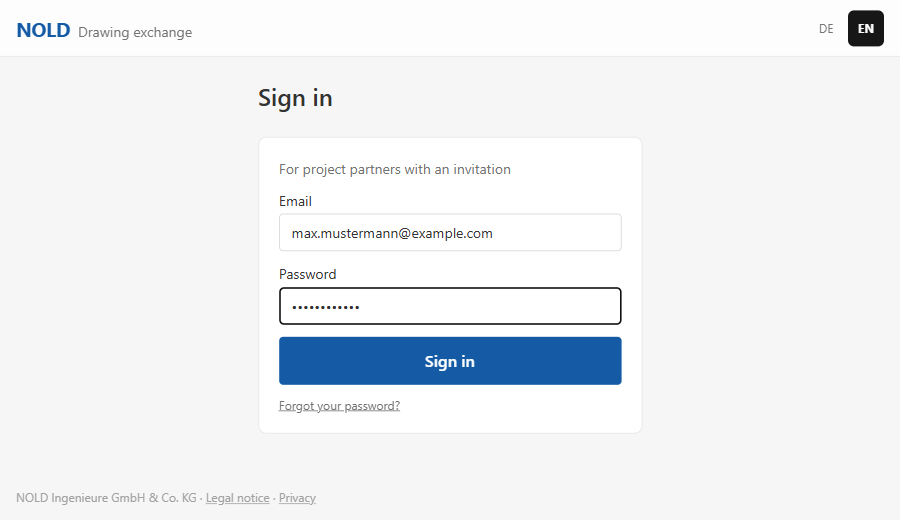
- Sign in. Your sign-in name is the email address the invitation was sent to.
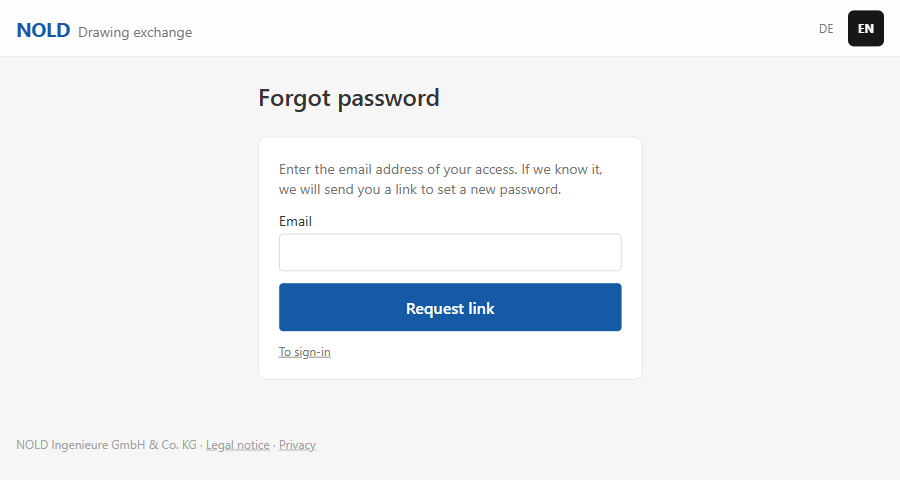
- Forgot your password? Click “Forgot password?” under the sign-in button and enter your email address. If it is known, NOLD sends a link with which you set a new password. It is valid for 60 minutes and only once.
Good to know
- Five failed sign-ins lock the access for 15 minutes.
- An access can have an expiry date; after that it no longer signs in. Please contact NOLD in that case (section 10).
2. The start page “For you”
After signing in you see what is pending and what is new since your last visit – across all your projects.
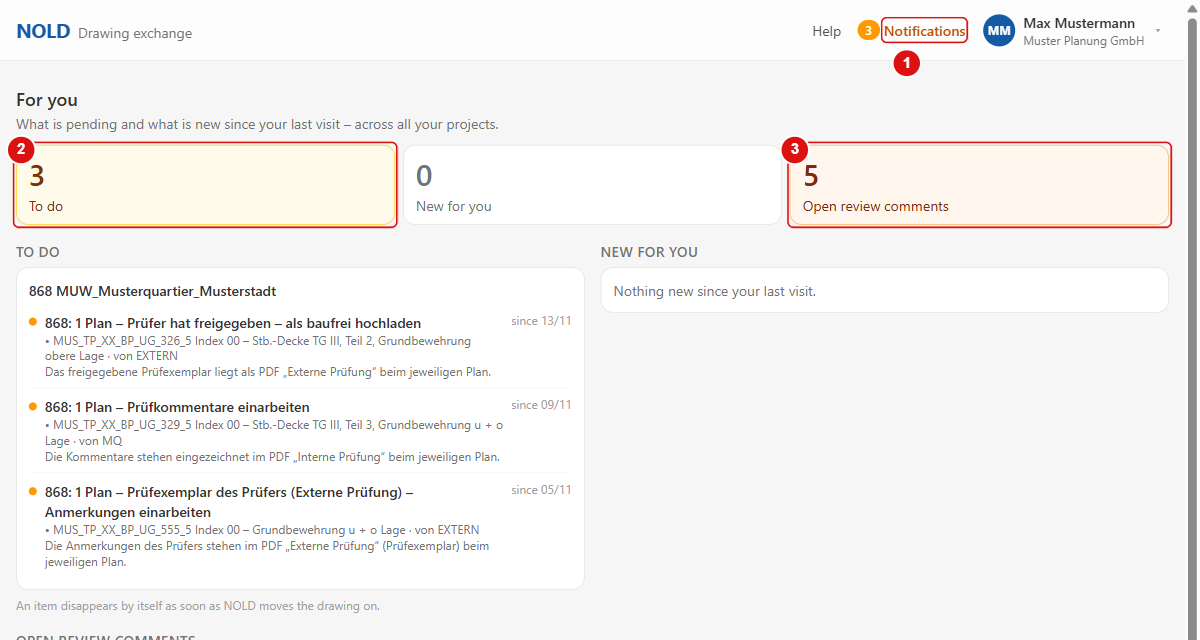
- 1Notifications: the number beside the bell counts your open items; a click leads to this start page.
- 2To do: tasks NOLD has reported to you from the drawing process – for example incorporating review comments.
- 3Open review comments: comments of the internal review that are still open in your drawings.
How it works
- Read “To do”: each item names the project, the drawings with their revision and what is to be done. A click opens the project at exactly these drawings.
- “New for you” lists the drawings that are new since your last visit (marked “NEW” in the drawing list).
- Under “Projects” you open a project with a click on its tile. Use the star to keep favourites.
Good to know
- An item disappears by itself as soon as NOLD moves the drawing on. You do not have to tick it off.
3. Drawing list, filters and colours
The drawing list is the heart of the portal: one row per drawing, one column per station of the process. The cell shows the date on which the revision arrived there and the number of files.
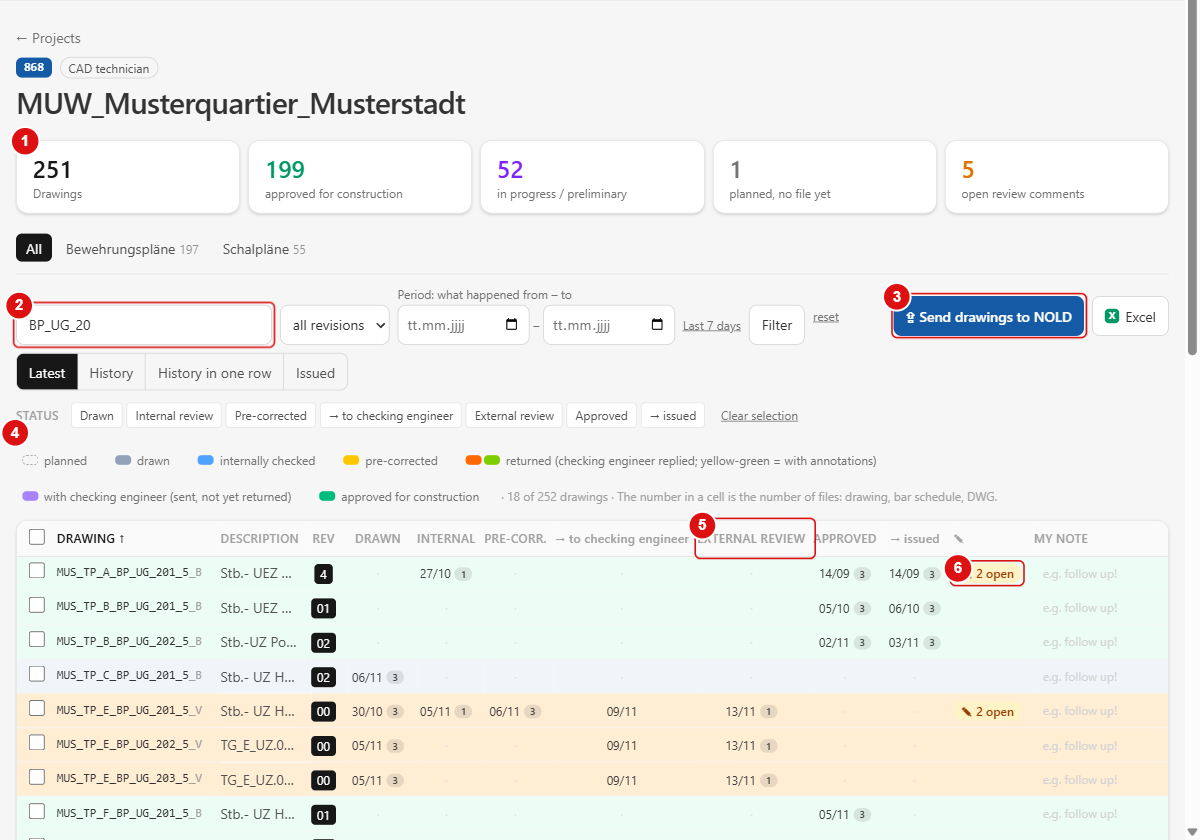
- 1Key figures: drawings, approved for construction, preliminary issue, planned without file, new since your last visit, open review comments.
- 2Search and filters: enter a drawing number (or part of it), choose a revision, set a period, then “Filter”; the tabs above separate by drawing type.
- 3“Send drawings to NOLD”: opens the upload (section 4).
- 4Legend of the row colours, also the filter by colour: planned (dashed), drawn (grey), internally checked (blue), pre-corrected (yellow), returned (orange; yellow-green = approved with annotations), with checking engineer (violet), approved for construction (green). A click shows only that colour, further clicks add colours; “all colours” clears it.
- 5Column “External review”: this is where the checking engineer’s reply appears (section 8).
- 6“open” in the column with the pencil symbol: the number of open review comments on the drawing (section 7).
How it works
- Find a drawing with the search field (drawing number or part of it) and “Filter”. “reset” clears all filters.
- The buttons under “Status” (Drawn, Internal review, Pre-corrected, → to checking engineer, External review, Approved, → issued) show only drawings that stand at that station.
- Switching between “Latest”, “History” and “History in one row” shows per drawing only the current revision or all earlier revisions.
- The colours of the rows and of the legend are the same as in NOLD’s own drawing list: the colour tells you where a drawing currently stands without reading the columns.
- A click on the drawing number or “View” opens the drawing in the viewer (section 7). Use ‹ › to page through the filtered list.
Good to know
- Whether you see preliminary issues (revisions not yet approved) depends on your access (“Preliminary issues”). Without this switch you see approved-for-construction drawings only.
- If your access is restricted to certain drawing types, the list shows only those.
- Only CAD technicians and NOLD see the columns “Internal” and “review comments”, not the checking engineer and not the clients.
4. Uploading the first drawing
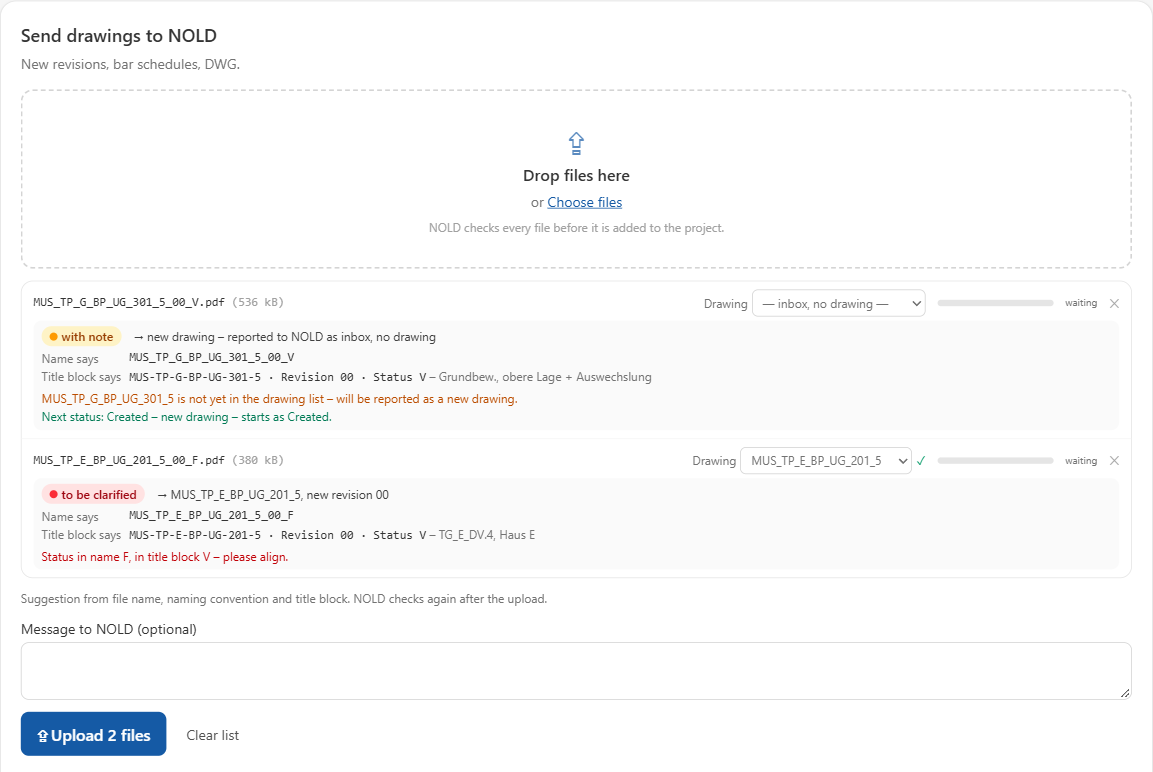
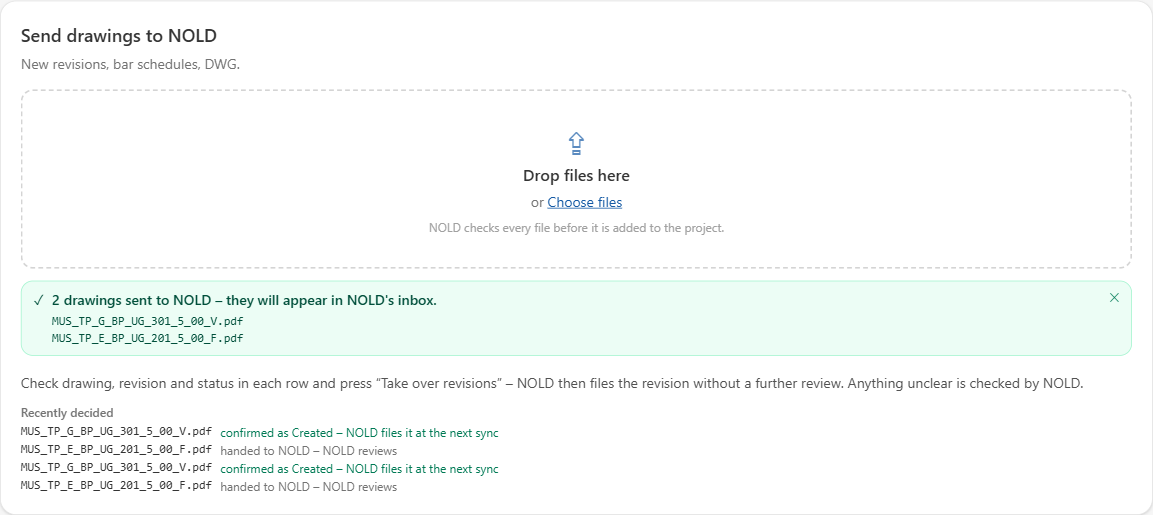
Drawings, bar schedules and DWG files go to NOLD via “Send drawings to NOLD”. The portal checks each file in your browser before it is sent: by the file name (the project’s naming convention), by the title block of the first page and by the revision. You then confirm the revision – only then does NOLD file it.
How it works
- Name the file according to the project’s drawing code: drawing number, revision and status, separated by underscores – for example MUS_TP_G_BP_UG_301_5_00_V.pdf (drawing MUS_TP_G_BP_UG_301_5, revision 00, status V = preliminary issue). Revisions approved for construction carry B or F as status. NOLD will tell you your project’s drawing code; the portal reads it from the naming convention.
- Click “Send drawings to NOLD”. Drag the files into the field or choose them (whole folders too). PDF, DWG, DXF, ABS, ZIP, IFC, XLSX, DOCX, JPG, PNG and TIF are allowed, at most 200 MB per file; the portal does not accept executable files.
- Read the lines below each file. “Name says” is what follows from the file name; “Title block says” is what the title block of the first page contains (drawing, revision, status). The traffic light sums it up: green = OK, yellow = with note, red = to be clarified.
- If the drawing is wrong, choose it from the list on the right of the row. A new drawing is not in the list yet – the portal reports it as a new drawing; it starts with the status “Created”.
- If needed, write a message to NOLD (optional) and click “Upload files”.
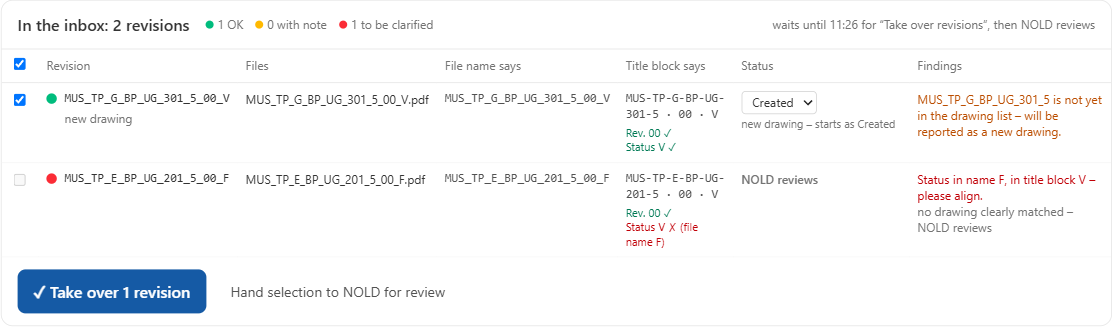
- The inbox appears. Check drawing, revision and status in each row and click “Take over revision”. NOLD files the revision at the next sync without a further review. Anything unclear goes to NOLD as “NOLD reviews” into the importbox in the office.
Good to know
- A typical red line: “Status in name F, in title block V – please align.” File name and title block contradict each other (F = approved for construction, V = preliminary issue). Correct the file or its name and upload again – or have the revision renamed (section 10).
- Other findings the portal reports: the drawing cannot be matched clearly (“NOLD reviews”); the revision in the name does not match the title block; the drawing is not yet in the drawing list (new drawing).
- Attachments belong to the revision: a bar schedule has the drawing’s name plus the suffix _STL (PDF and .abs), a DWG has the same name as the drawing. Upload all files of a revision together and take them over together. The number in a cell of the drawing list is the number of files: drawing, bar schedule, DWG.
- You do not have to press “Take over revision” immediately, but within the waiting time (default 20 minutes; the row shows the time). After that NOLD reviews the file itself.
- By default the portal accepts at most 100 files and 2 GB per person and day; NOLD can change this. Every file is scanned for malware; infected files are quarantined and do not enter the project.
- Only accesses with the “upload” right may upload; readers (client, site manager) may not.
5. Uploading a new revision (new index)
You upload every further revision of a drawing the same way (section 4). Which status the revision gets is proposed by the portal from the drawing’s history and shown in the “Status” column with the reason. You can change it there among the permitted statuses.
How it works
- New drawing, never supplied before: status “Created”.
- NOLD has reviewed internally with comments: your revised revision is “Pre-corrected”. If NOLD reviews again afterwards, it is the next round (“round 2”).
- The checking engineer has commented: the incorporated revision is again “Pre-corrected” – a new review round.
- The checking engineer has approved (without remarks): you upload the revision as “Approved” (for construction).
- The checking engineer has approved with mark-ups: you incorporate the mark-ups and upload directly as approved for construction – no new review round.
- After approval: a new revision of an approved drawing stays approved and is filed as “Approved”. The same revision supplied again (e.g. a DWG supplied later) completes the approved revision.
- The same revision supplied again while it is not with the checking engineer: the portal treats it as an intermediate revision.
Good to know
- You can also set the status in the file name: an addition after “#” such as #erstellt, #vorkorrigiert, #baufrei (round 2: #vorkorrigiert2). The portal adopts it if the drawing’s history allows it, otherwise it names the reason. NOLD maintains which words apply per project; the ones named are the defaults.
- The revision in the file name and in the title block must match; otherwise the portal reports a note.
- If a drawing is already with the checking engineer and you supply a new revision later, the portal accepts it as “Pre-corrected, supplied later” and points this out; the checking engineer receives the new status.
6. Notifications and emails
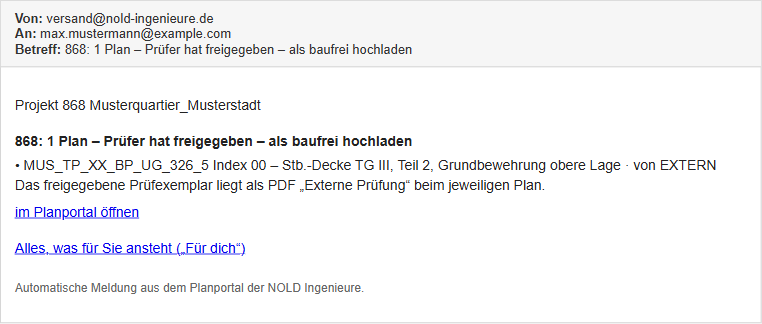
NOLD tells you what is to be done for you from the drawing process. The notifications appear in the portal (bell “Notifications” and start page “For you” → “To do”). The same notification is also sent to you by email if NOLD has switched on the email dispatch for process notifications; NOLD will tell you whether this applies to your project.
How it works
- “Prüfkommentare einarbeiten” (incorporate review comments) – NOLD has reviewed your drawing internally with comments. The comments are marked up in the PDF “Internal check” at the drawing (section 7). Afterwards you upload the revision as “Pre-corrected”.
- “Prüfexemplar des Prüfers (Externe Prüfung) – Anmerkungen einarbeiten” (checking engineer’s copy – incorporate the remarks) – the checking engineer has commented. His remarks are in the PDF “External review” (section 8). Afterwards you upload the revision as “Pre-corrected”.
- “Prüfer hat mit Eintragungen freigegeben – Eintragungen einarbeiten und als baufrei hochladen” (checking engineer approved with mark-ups – incorporate them and upload as approved for construction) – no new review round; after incorporating you upload directly as approved for construction.
- “Prüfer hat freigegeben – als baufrei hochladen” (checking engineer approved – upload as approved for construction) – the approved checked copy is the PDF “External review” at the drawing; you upload the revision as approved for construction.
Good to know
- Apart from these notifications and the emails for invitation and password the portal sends nothing by itself. A reminder may be added when a deadline set by NOLD has passed.
- Replies to a notification email go to NOLD’s project mailbox (section 10).
- A notification resolves itself as soon as NOLD moves the drawing on. This includes the arrival of your new revision.
7. Internal review by NOLD: review comments in the viewer
Once NOLD has reviewed your drawing internally, you see the comments directly on the drawing: in the drawing viewer (“View”) or as the PDF “Internal check” or “PDF with comments”.
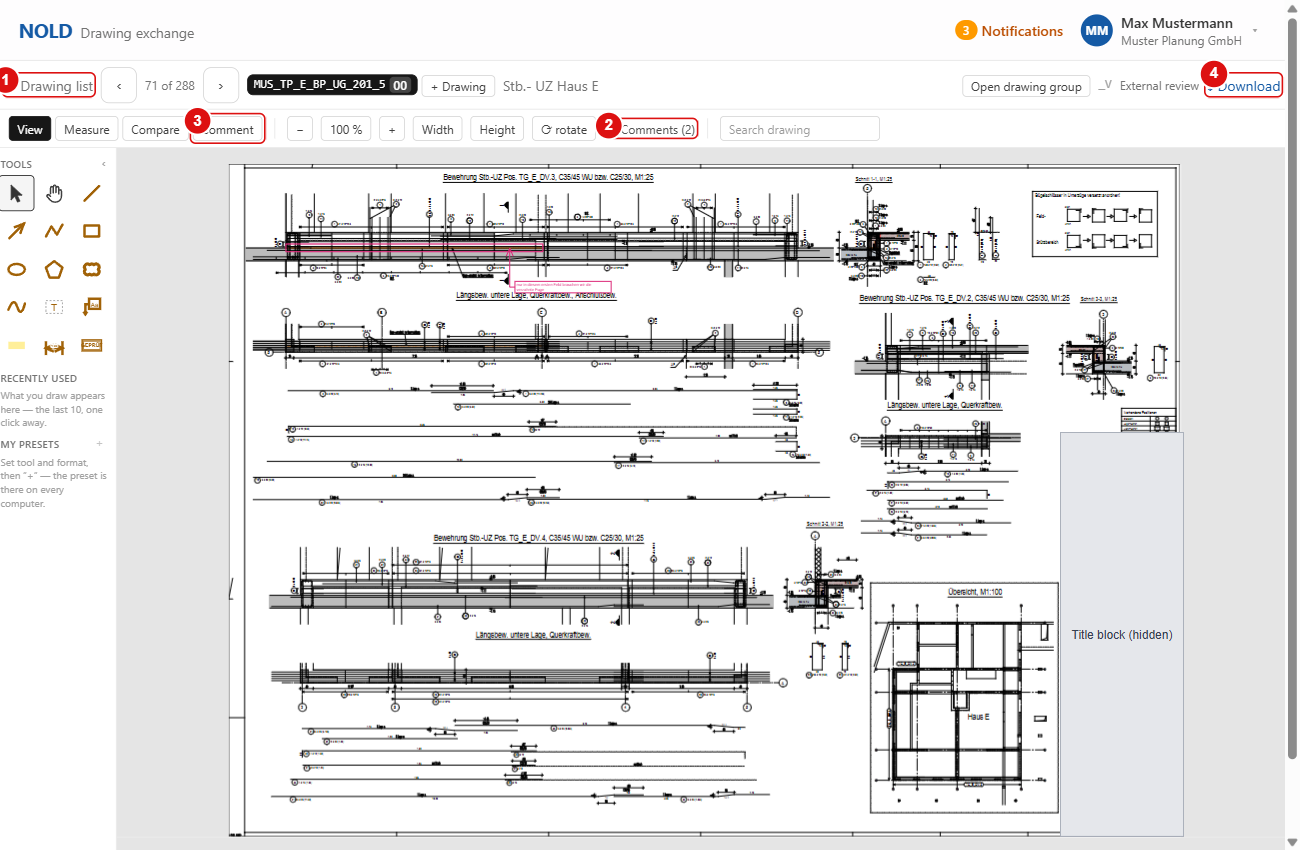
- 1“Drawing list”: back to the list with the same filters.
- 2“Comments (2)”: shows and hides the comments of the internal review; the number tells how many there are on this drawing.
- 3“Comment”: draw your own remarks (cloud, text with pointer, stamp). This view also offers “PDF without comments” and “PDF with comments”.
- 4“Download”: downloads the file shown.
How it works
- Open the drawing via “View” or the drawing number. At the top you choose the revision.
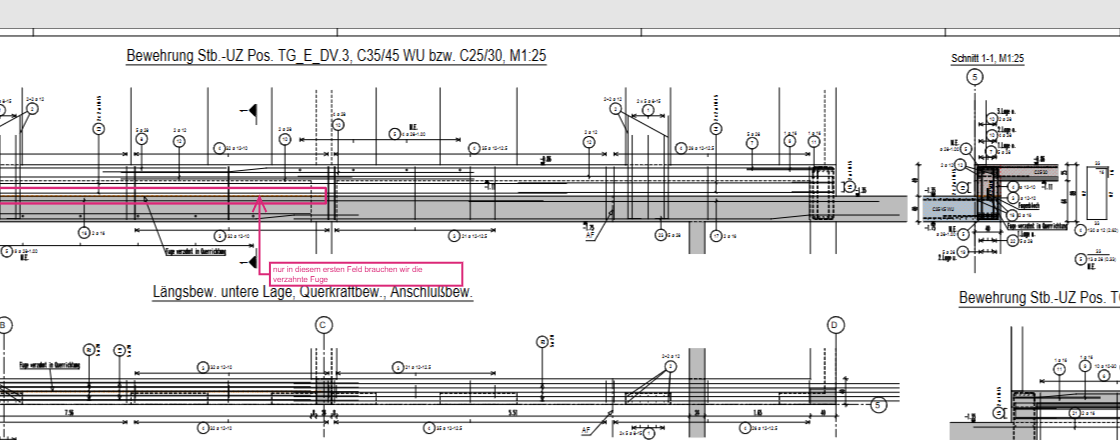
- Keep “Comments” switched on. Each comment sits at the place on the drawing it refers to.
- Incorporate the comments into your drawing. If you need the comments in a PDF, switch to “Comment” and download “PDF with comments”: it contains exactly the comments the viewer shows you.
- Upload the revised revision (sections 4 and 5), as “Pre-corrected”.
- If NOLD reviews again, the same loop runs as the next round. You recognise it by a new notification “Prüfkommentare einarbeiten”; the drawings are then marked “(Round 2)”.
Good to know
- You can only read the comments of the internal review; only NOLD can tick them off or answer them. They are not visible to the checking engineer and not to the clients.
- Only you and NOLD see your own comments (cloud, text, stamp); NOLD sees them as “extern: name, company”. If NOLD ticks one off or answers it, you see both in the card at the comment.
- The viewer can also zoom, measure, search in the drawing and compare two revisions in red/blue.
8. The checking engineer: reply and approval stamp
After the pre-correction NOLD passes the drawing on to the checking engineer (column “→ to checking engineer”). His checked copy with remarks or approval stamp comes back as the “reply”; in the drawing list it appears in the column “External review” (figure 5, number 5).
How it works
- You recognise the reply by a date in the “External review” column and by the row colour “returned (checking engineer replied)”. A notification is added (section 6).
- Open the drawing (“View”) and choose the revision “External review” – this is the checking engineer’s checked copy with stamp and remarks. You can view and download it there.
- The checking engineer’s result takes three forms: commented (incorporate the remarks, new review round), approved with mark-ups (incorporate and upload as approved for construction, no new review round), approved without remarks (upload as approved for construction).
- Then upload the revised revision with the status the portal proposes (section 5).
Good to know
- A drawing becomes approved for construction only when your revision has been filed at NOLD as “Approved”. The checking engineer’s approval alone does not make the drawing approved for construction.
- The checking engineer has his own access and sees only his own comments, not NOLD’s internal review.
- With a checking engineer without portal the reply comes by post or email; NOLD records it on his behalf, and you receive the same notification.
9. Approval, approved for construction, issue and download – what you may do
Once your revision approved for construction has been filed, it appears in the column “Approved” (row green). NOLD passes it on to the site (“→ issued”). What you may do in this portal depends on the switches of your access.
How it works
- View and download: view drawings, download files, several drawings as a ZIP or as an Excel list (switch “Download”).
- Upload: send drawings, bar schedules and DWG to NOLD (switch “Upload”, normally on for CAD technicians).
- See preliminary issues: revisions that have not been approved yet (switch “Preliminary issues”).
- Drawing types: if the access is restricted to drawing types (e.g. only formwork and reinforcement drawings), you see and supply only these.
Good to know
- The portal approves nothing: approving (for construction) and issuing are done by NOLD in the office. The drawing status view (floor plan with traffic light) is view-only.
- NOLD ticks off the comments of the internal review; you cannot mark them as done yourself. Checking engineers and readers do not get these functions either.
- If a function you need is missing (e.g. more drawing types or preliminary issues), ask NOLD to change your access.
10. Frequently asked questions and contact
A short answer to what is asked most often. For anything else: NOLD’s project mailbox.
How it works
- I cannot sign in. – Check the email address (the one of the invitation) and use “Forgot password?”. After five failed attempts the access is locked for 15 minutes.
- The invitation link no longer works. – It is valid for 14 days and only once. Ask NOLD for a new invitation.
- My drawing does not appear in the list. – Did you press “Take over revision”? NOLD files taken-over revisions at the next sync; the intranet syncs about every minute. Unclear files (“NOLD reviews”) are filed by NOLD after a review.
- File too large, file type not allowed, no connection. – At most 200 MB per file, only the file types named; with “no connection” the file stays in the list, upload again later.
- File name and title block contradict each other. – Change the revision or the status letter. Your own revisions that are not yet with the checking engineer can be renamed via the portal (“Rename revision (index / status letter)”); NOLD renames them including the files at the next sync.
- I do not see drawings that a colleague sees. – This depends on your access (drawing types, preliminary issues); NOLD can adjust it.
- Whom do I ask? – Reply to an email from NOLD or write to the project mailbox <project number>@nold-ingenieure.de (for example 868@nold-ingenieure.de). Questions land in the project there.
All names, email addresses and companies in the images are samples. The examples come from a real NOLD Ingenieure project.